Setting up your Marigold IDAccount
Once your Organization has been onboarded in Marigold, the platform will send you a Welcome Email. This email message contains an activation link with a 7-day expiration.
To set up your new Marigold ID:
-
Check your inbox for the Welcome Email message.
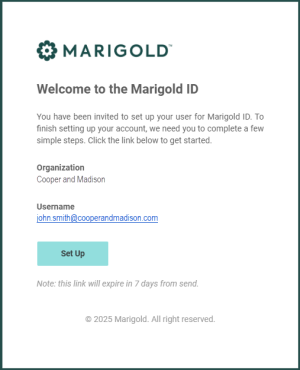
Note: If the activation link expires before you can activate your account, please reach out to your Marigold team, who can resend you the welcome email.
-
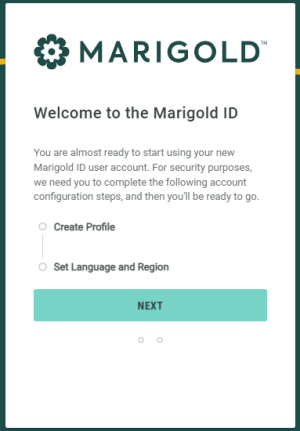
In the Welcome Email message, click Set Up. The Welcome to the Marigold ID pop-up window is displayed.
-
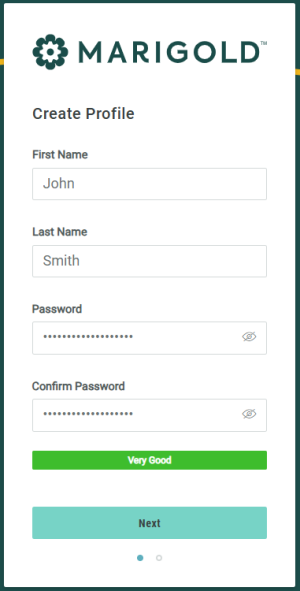
Click Next. The Create Profile pop-up window is displayed.
-
Enter your name, and create a password for your new Marigold ID.
-
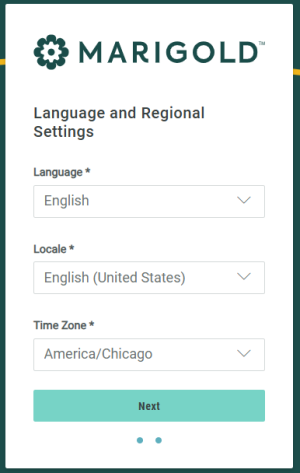
Click Next. The Language and Regional Settings pop-up window is displayed.
-
Select your preferred language, and your location and time zone.
-
Click Next. The platform logs you into the Marigold ID User Workspace. For more information, please see Marigold ID User Workspace.
Troubleshooting
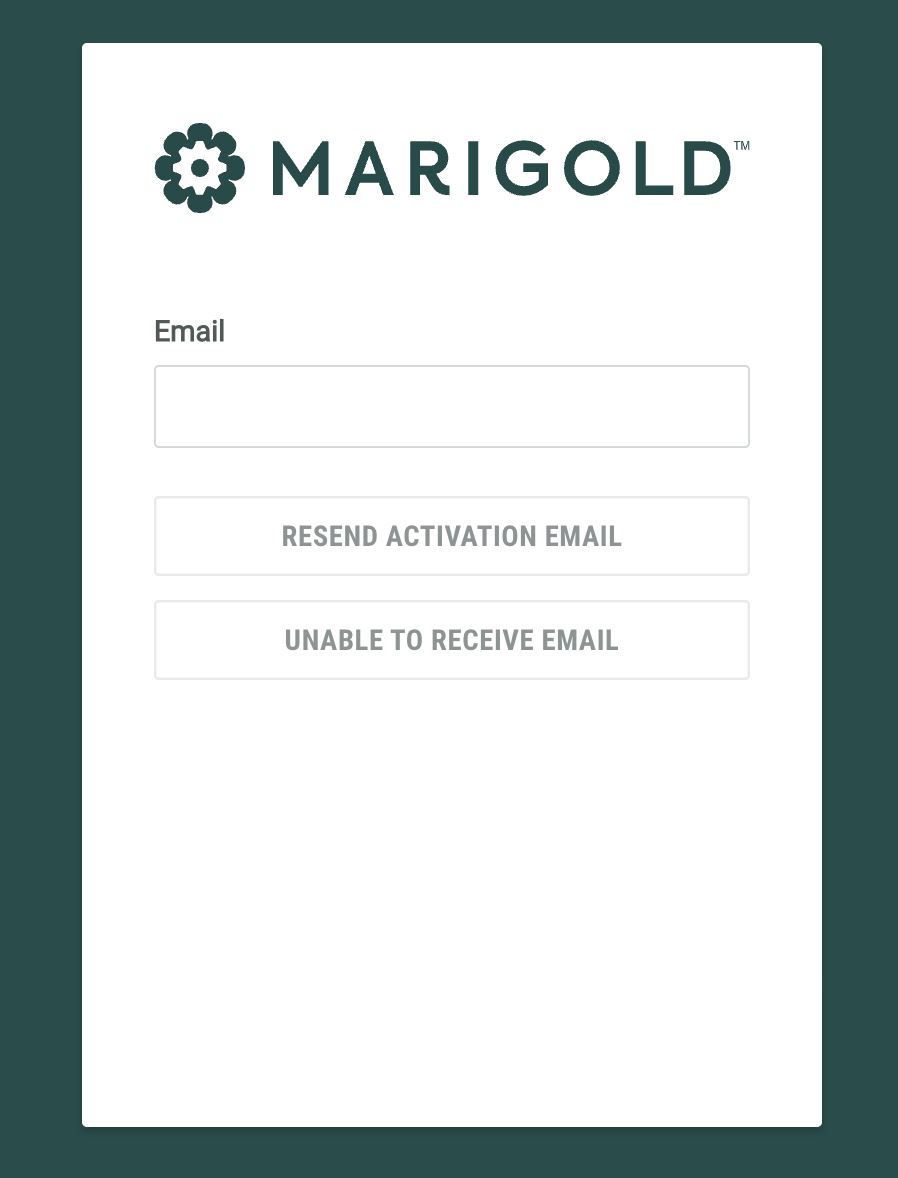
If you are having trouble logging in, or the welcome email has expired, click Trouble receiving email? on the login page.
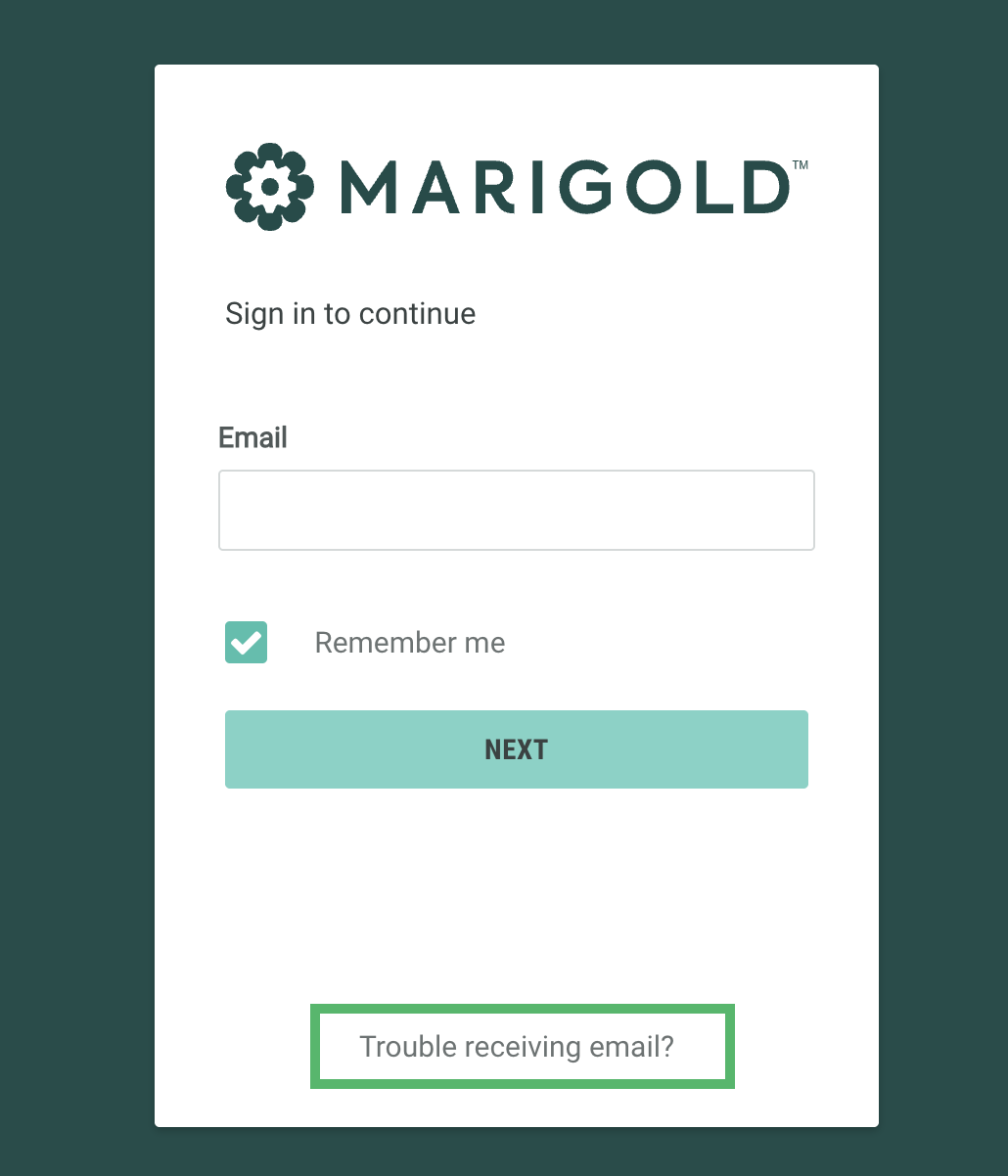
Enter your email address and click Resend Activation Email to receive a new welcome email.
If you are a new user and not receiving the emails, click Unable to Receive Email to send a one time code to login and set up your account.